How to Set Up IPTV on Android with IPTV Smarters Player
Step 1: Start by downloading the IPTV Smarters app via this URL: https://www.iptvsmarters.com/smarters.apk
Step 2: Once downloaded, open the app and enter your login credentials.

Step 3: Enter the login credentials we provided after you subscribed and click “Add User.”
Step 4: Wait a few seconds for the content to load.
Step 5: Now, click on the “Live TV” icon as shown in the image.
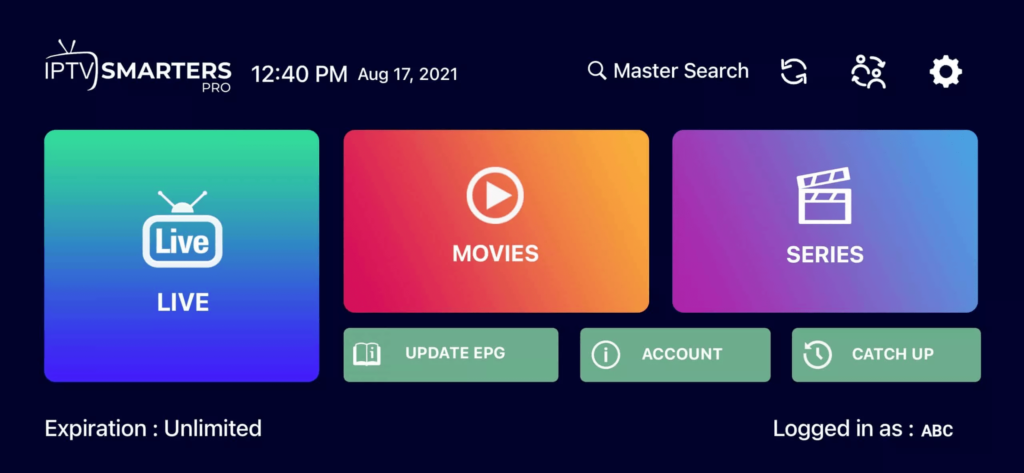
Step 6: Select the channel group you wish to watch to proceed to the next section.
Step 7: Click on the channel name, then double-click the small preview screen to switch to full-screen mode.
Windows Installation:
Download the IPTV Smarters application here: click here
MAC Installation:
Download the IPTV Smarters application here: click here
How to Set Up IPTV on Fire TV Stick
Step 1: From your device’s Home screen, hover over the Search option.
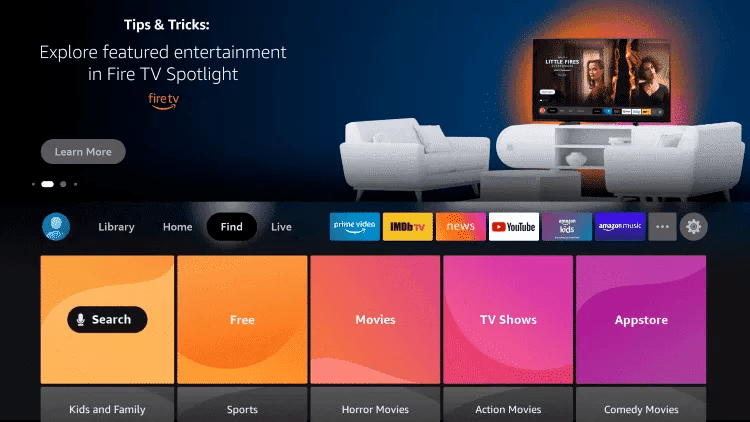
Step 2: Click on Search.
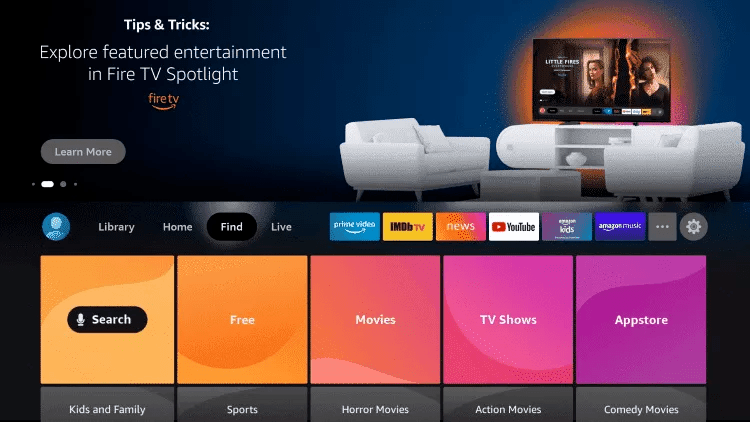
Step 3: Search for and select Downloader.
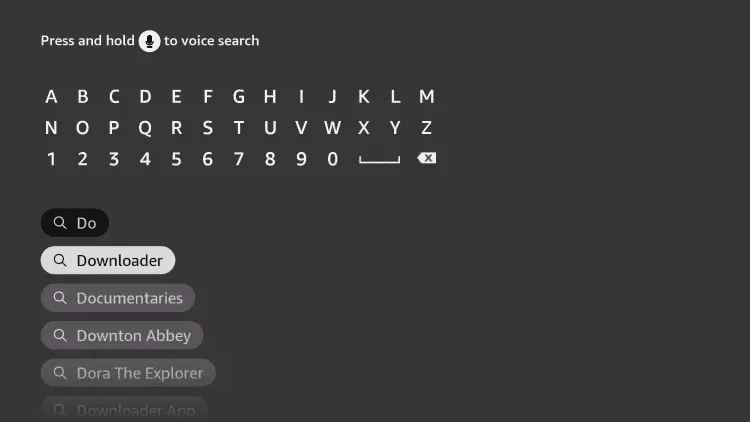
Step 4: Select the Downloader app.
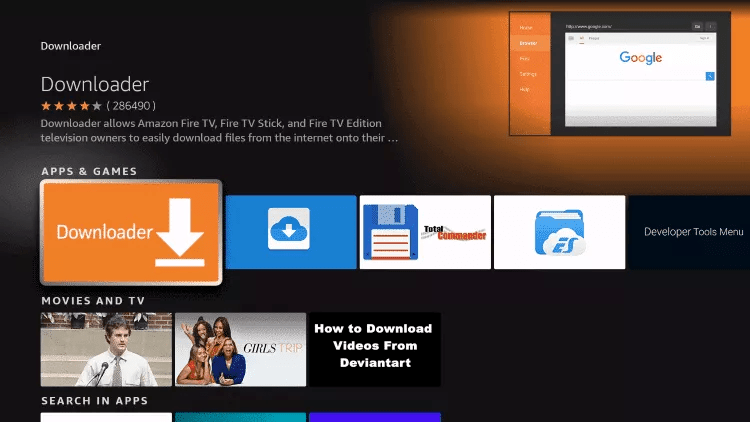
Step 5: Click Download.
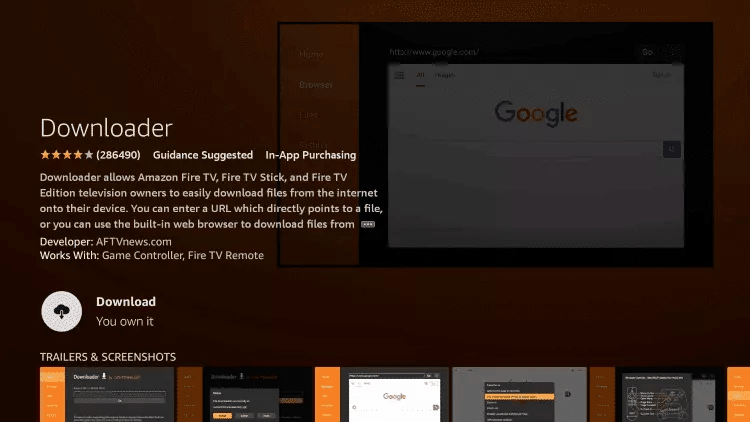
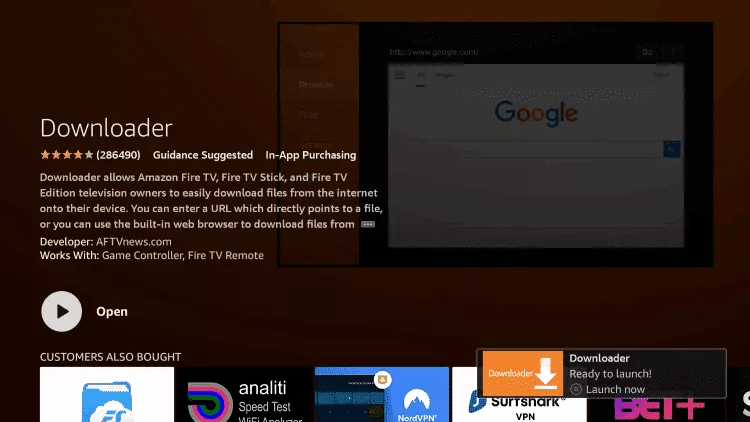
Step 6: Once the app installation is complete, click Open.
Step 7: Return to the Home screen and open Settings.
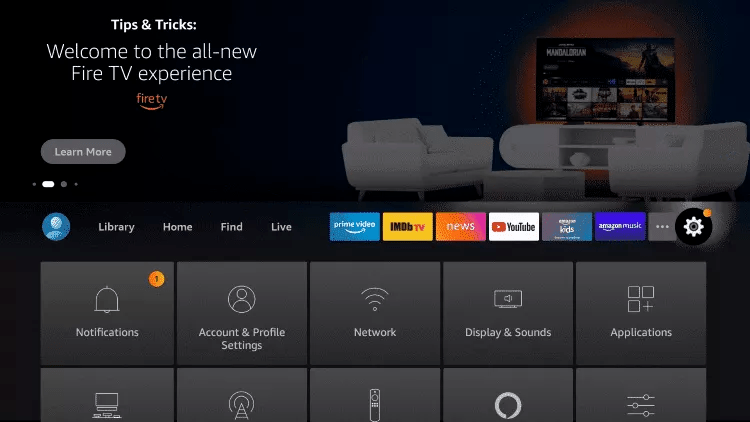
Step 8: Click on My Fire TV.

9.Choisissez les options du développeur.
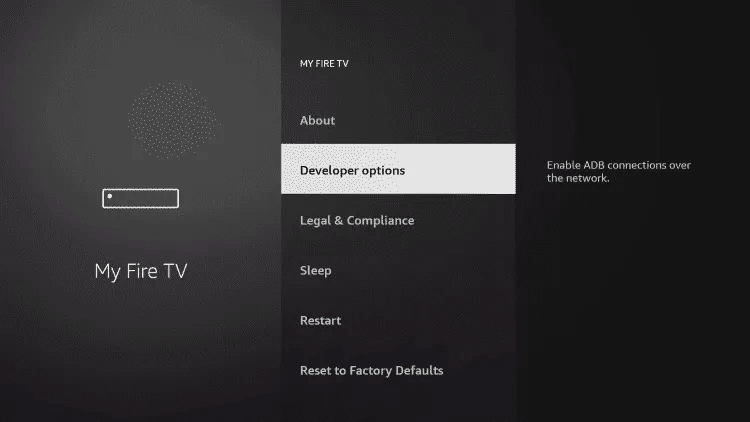
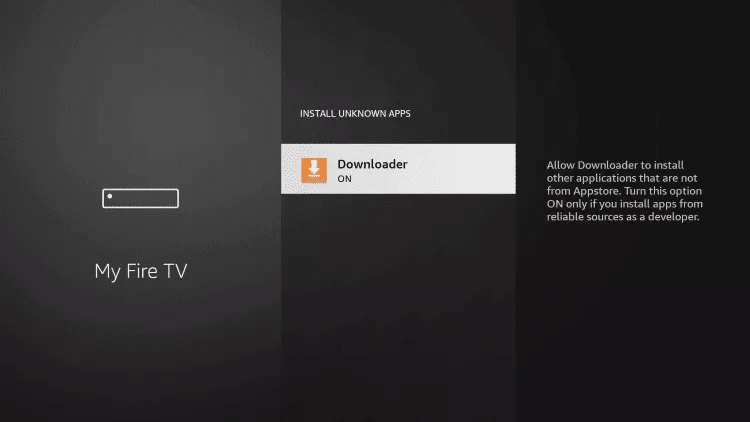
Step 10: Click on Install unknown apps.

Step 11: Find the Downloader app and click on it.

Step 12: This will enable Unknown Sources for the Downloader app, allowing you to sideload applications onto your device.
Step 13: Launch Downloader.
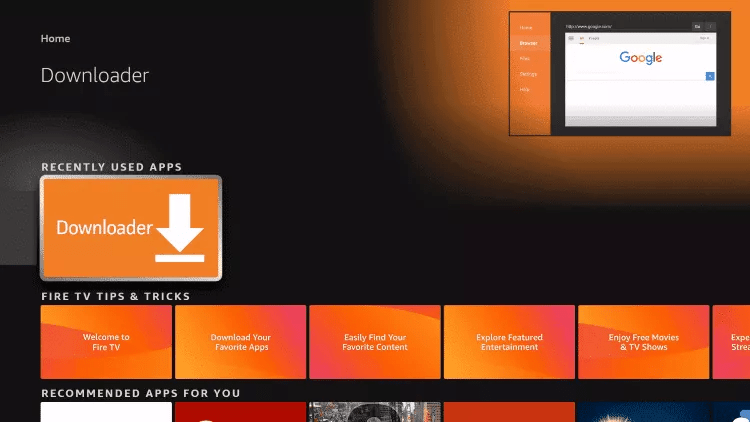
Step 14: Click Allow.

Step 15: Click OK.

Step 16: Type the following URL exactly as shown: https://www.iptvsmarters.com/smarters.apk and click Go.

Step 17: Wait for the file to finish downloading.

Step 18: Click Install.
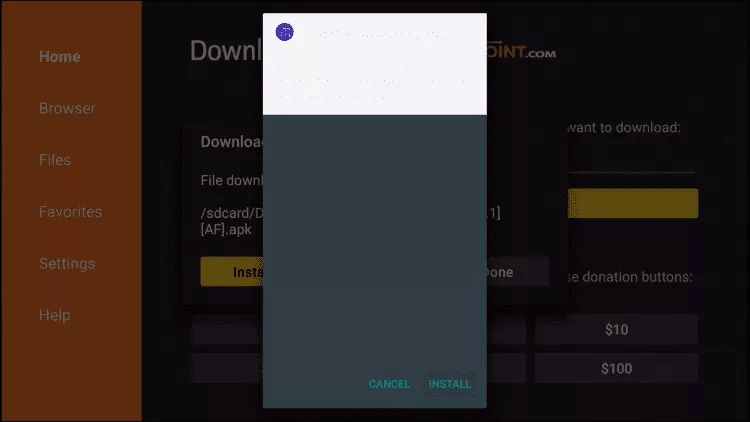
Step 19: Click Done.
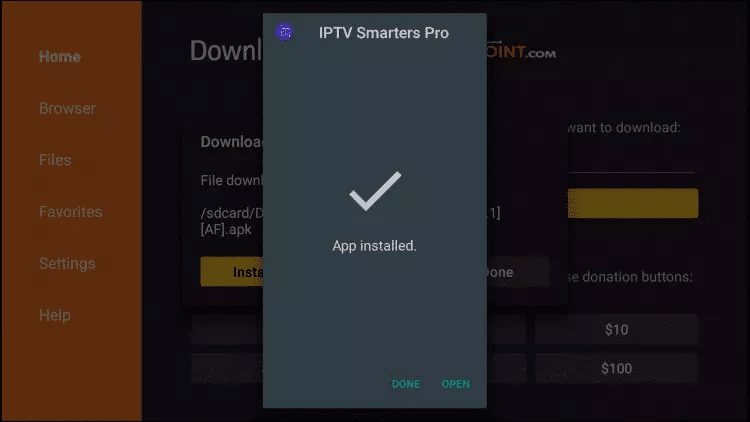
Step 20: Open IPTV Smarters, then select Login with Xtream Codes API.
Step 21: Enter the login credentials we sent to you via WhatsApp, email, or chat.
How to Set Up IPTV on Apple/iOS with IPTV Smarters Player
Step 1: Start by downloading the IPTV Smarters app from the Apple App Store via this URL: https://apps.apple.com/in/app/smarters-player-lite/id1628995509
Or you can download it directly from the App Store.
Step 2: Open the app once downloaded and enter your login credentials.
Step 3: Enter the login details we provided after you subscribed and tap “Add User.”
Step 4: Wait a few seconds.
Step 5: Now click on the “Live TV” icon as shown in the image.
Step 6: Now, select the channel category (group) you want to watch and proceed to the next section.
Step 7: Click on the channel name, then double-click on the small preview screen to switch to full-screen mode for the final step.
For Samsung Smart TV
Step 1: Press the Smart Hub button on your remote control.
Step 2: Search for IPTV Smarters Pro and install it.
Step 3: Log in to the application using your subscription details: Username, Password, and Portal URL.
For LG Smart TV
Step 1: Press the Home button on your remote and go to the LG Content Store.
Step 2: Search for IPTV Smarters Pro and install it.
Step 3: Log in to the application using your subscription details: Username, Password, and Portal URL.
💡 Important Note for Smart TVs:
On many Samsung and LG models, the official “IPTV Smarters Pro” app has been removed from the stores. If your customers cannot find it, they often use “Smarters Player Lite” or “IBO Player” as alternatives.
Would you like me to create a professional PDF-style layout combining all these guides (Fire Stick, iOS, Samsung, and LG) into one document for your clients?